Accessibility settings in games: every option we built and why
Which accessibility settings should a game have? Every option in Mytheria, from sound captions to hold to confirm, what each does, and a demo to try.
On this page
- Which accessibility settings should a game have?
- The short answer
- Put them where people look
- Make text bigger and clearer
- Let players remove what they don't need
- Calm the motion
- Never rely on colour alone
- Write important sounds on screen
- Make big decisions hard to trigger by accident
- Let players change every control
- How we built the settings in Godot
- A checklist for accessibility settings
Most accessibility settings cost little to build once a game is designed for them, and each one decides whether someone can play at all. In Mytheria, our pixel-art co-op game, the settings menu has its own Accessibility tab with ten options, and a few more live under Controls and Display. This is every one of them, what it changes in the game, and why we think it belongs there.
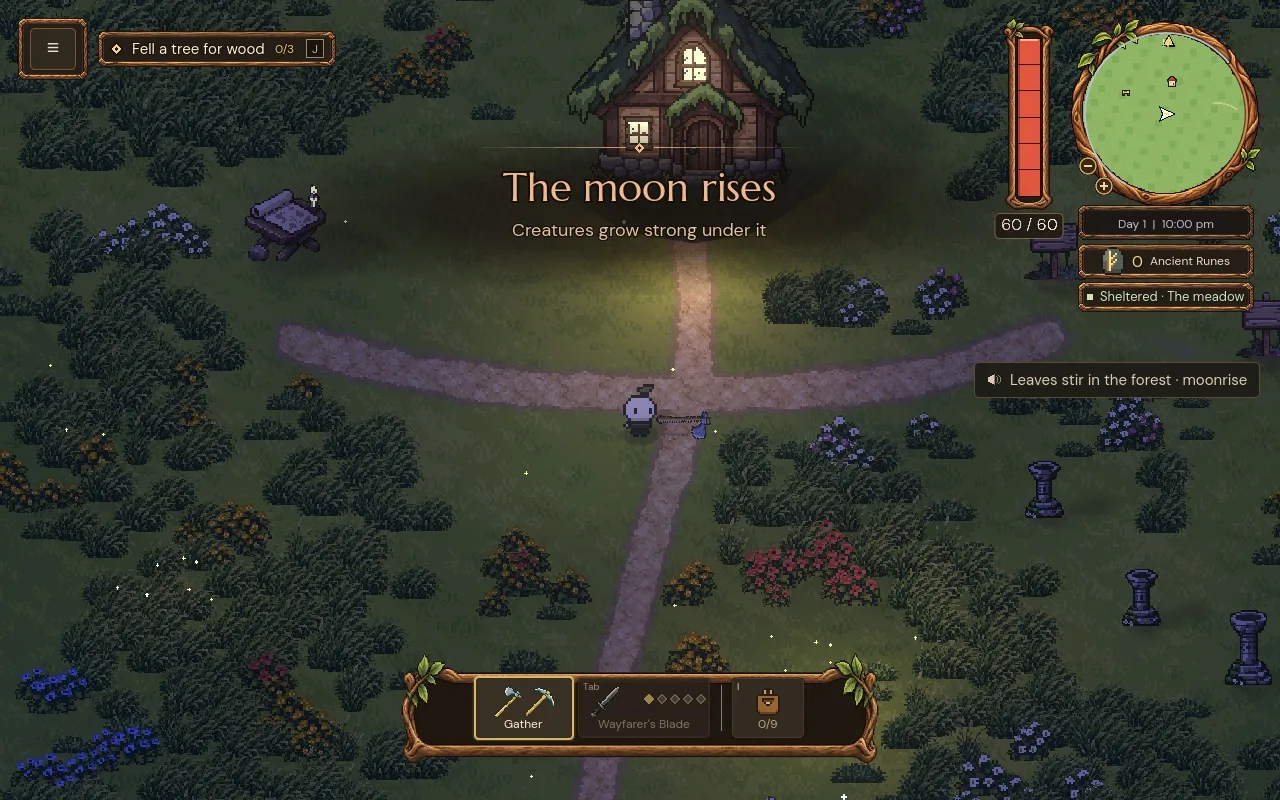
The clip at the top and every picture below were captured in the game for this post.
Which accessibility settings should a game have?
Start with the options that remove a barrier to playing. Let players make text bigger and clearer, turn off camera motion and flashing, read important sounds as text, tell warnings apart without relying on colour, and change every control. Then add small aids for the particular demands of your game, like holding a button instead of pressing it repeatedly, or confirming a big decision in a way that suits the player's hands.
The short answer
Mytheria's accessibility options:
- Interface size grows all text and menus from 100 % to 150 % in steps of 10 %, and the layouts rearrange to fit.
- High contrast darkens the plates behind text and thickens the outlines around it.
- Input hints, Place titles and the Objective tracker can each be switched off for a quieter screen.
- Reduced motion calms flashes, pulses and camera movement, and Screen shake has its own switch.
- Warning shapes add a pattern to every danger warning, so colour is never the only signal.
- Sound captions write eight important world sounds on screen for three seconds each.
- Big spends need a 0.6-second hold, or two presses within three seconds if holding is hard.
- Every key and button can be changed, gathering can be a toggle, and the controller deadzone runs from 0.1 to 0.5.
Put them where people look
Every option sits in one tab, grouped under four plain headings: Reading, Motion, Warnings and Assistance. Each one has a single line of help at the bottom of the menu, such as "Stronger edges and plainer backgrounds behind text.", which appears as you move to it. Changes apply the moment you make them, over the paused game, so you can see the result before you leave the menu.
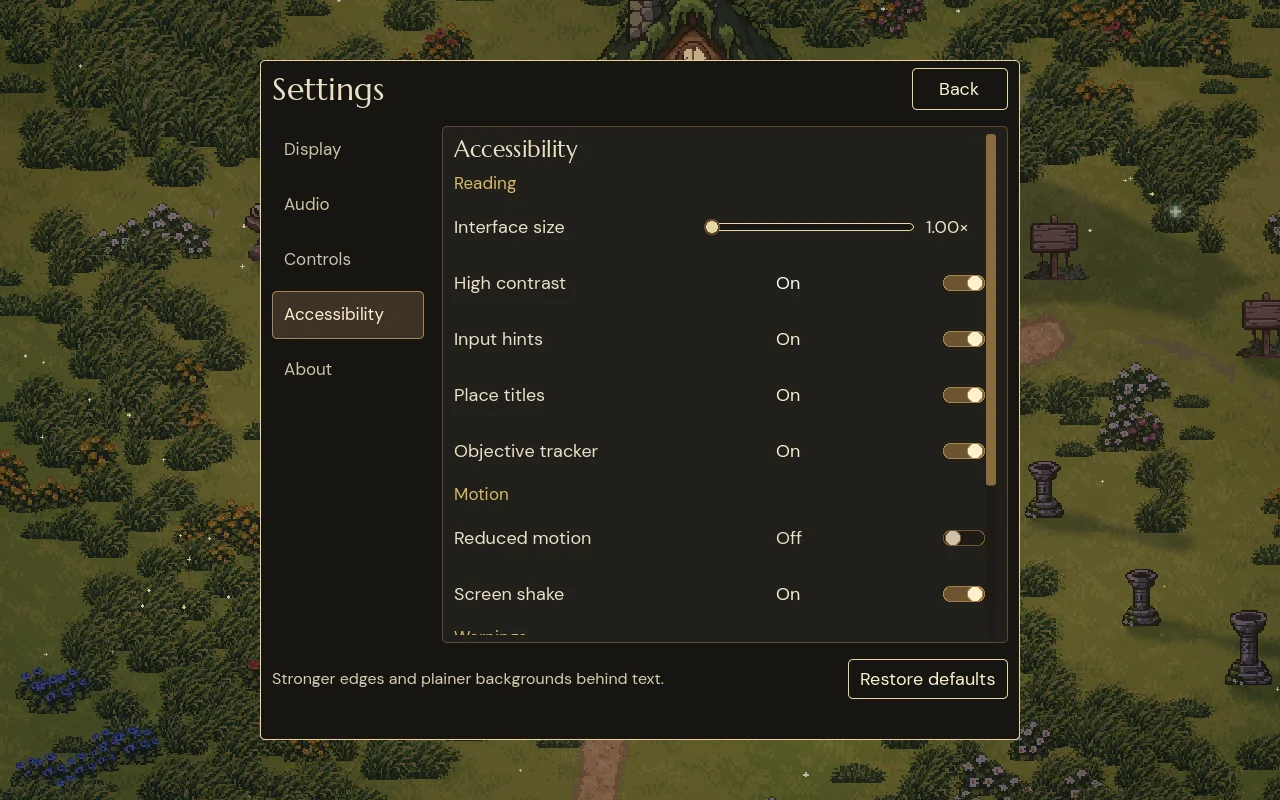
Settings belong to the device. A player who needs bigger text has it in every world they open, and in co-op each player keeps their own, so one person's captions never appear on a friend's screen. A Restore defaults button puts everything back.
Make text bigger and clearer
Interface size is the option we'd build first in any game. It grows every word and every menu up to one and a half times, while the world's art stays the same size, and screens like the bag rearrange themselves so nothing gets cut off. We measured every text size on every screen for game UI text sizes, which covers the setting in detail.
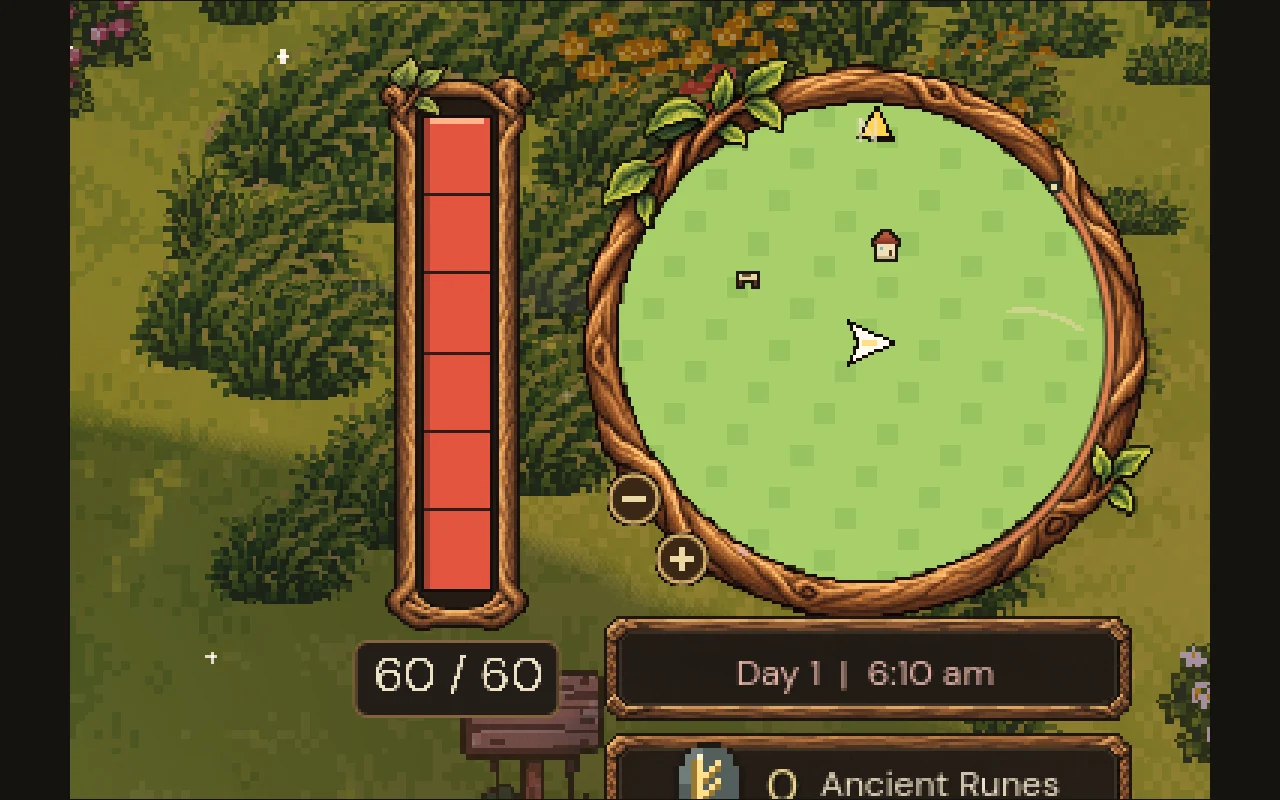
High contrast helps with the other half of reading: separating text from what's behind it. The plates behind HUD text get darker and plainer, their edges get brighter, and outlines around text drawn over the world get thicker. Markers on the minimap get a dark outline too, so they stand out from the grass. Compare the corner of the screen with it off and on:
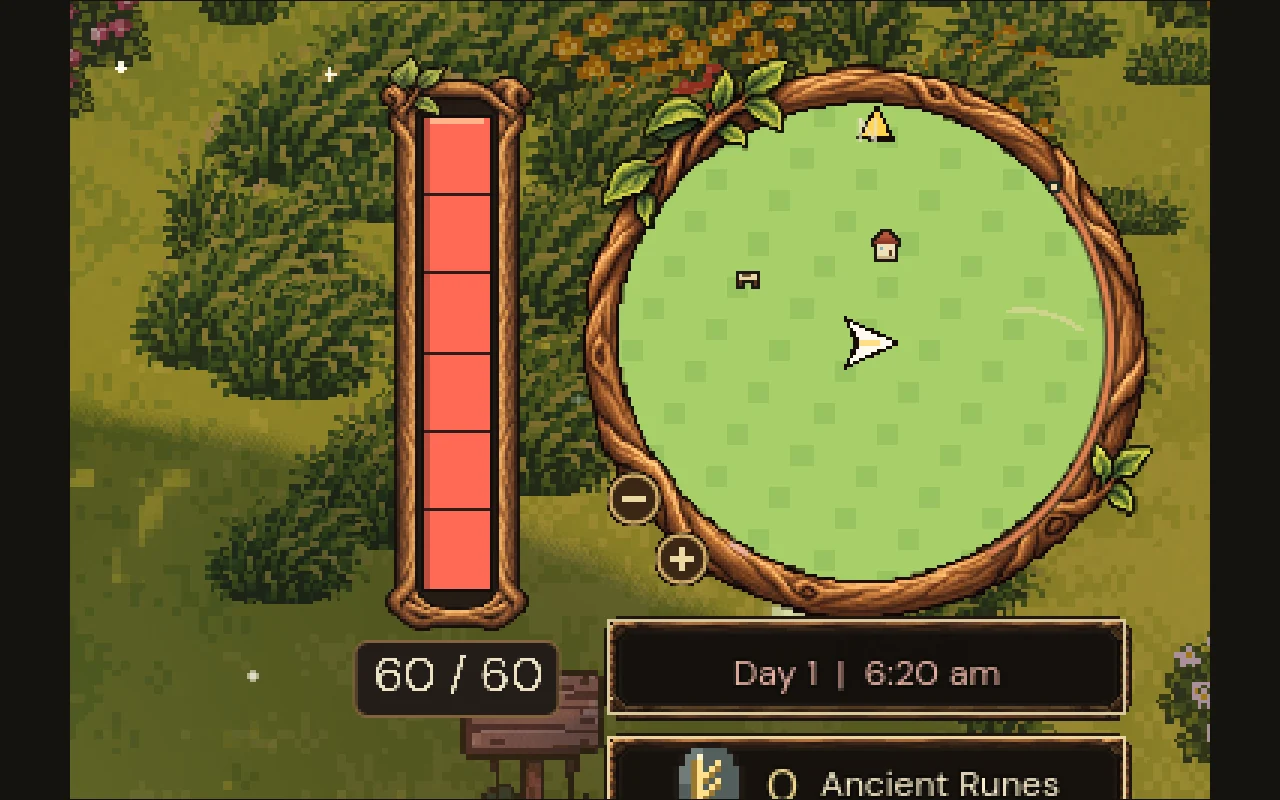
Step between off and on, or use the arrow keys
The default look. The plates are dark wood with a soft edge, and the minimap markers sit straight on the grass.
Let players remove what they don't need
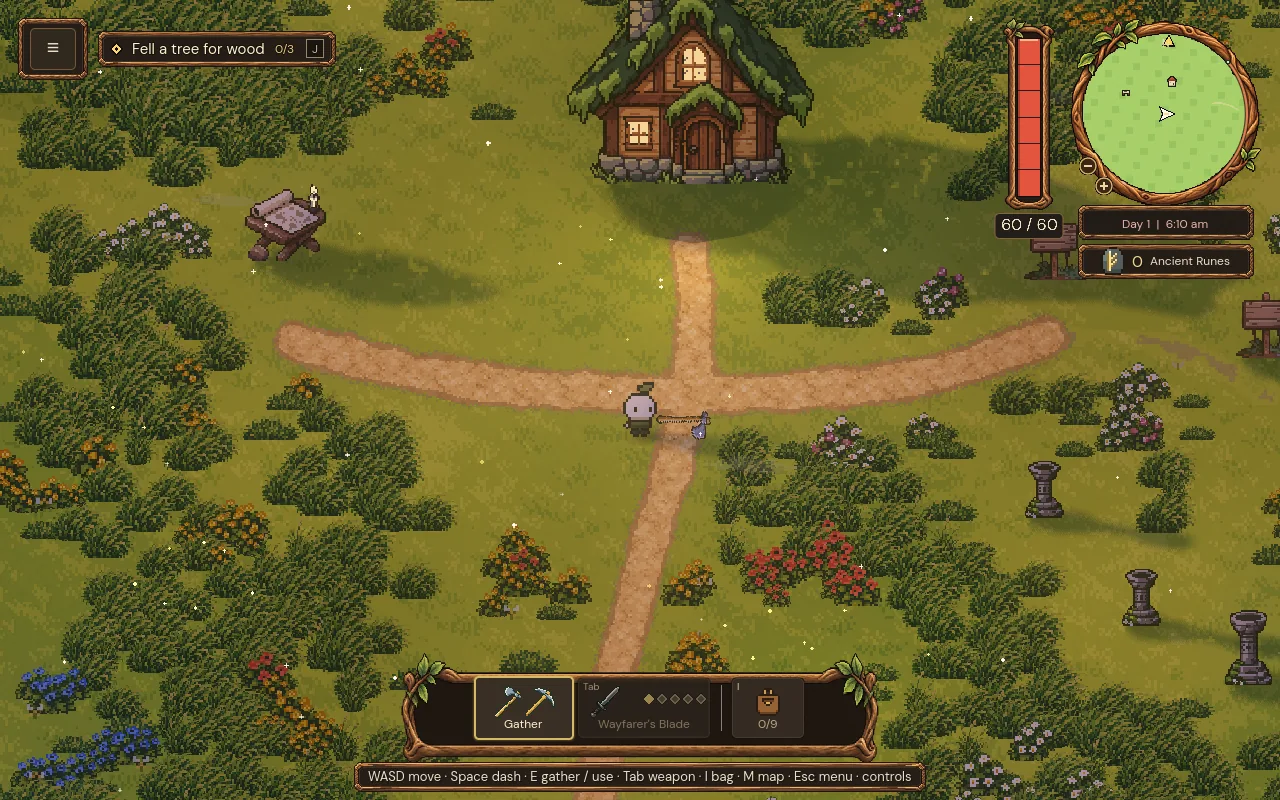
Some players find a busy screen harder to follow than a missing hint. Three options take text away. Input hints hides the strip of controls along the bottom, Place titles stops the name of each region appearing as you walk in, and the Objective tracker hides the line with your current goal. All three are on by default, because new players need them, and each can go once you know the game. The journal and the map still have everything you've hidden.
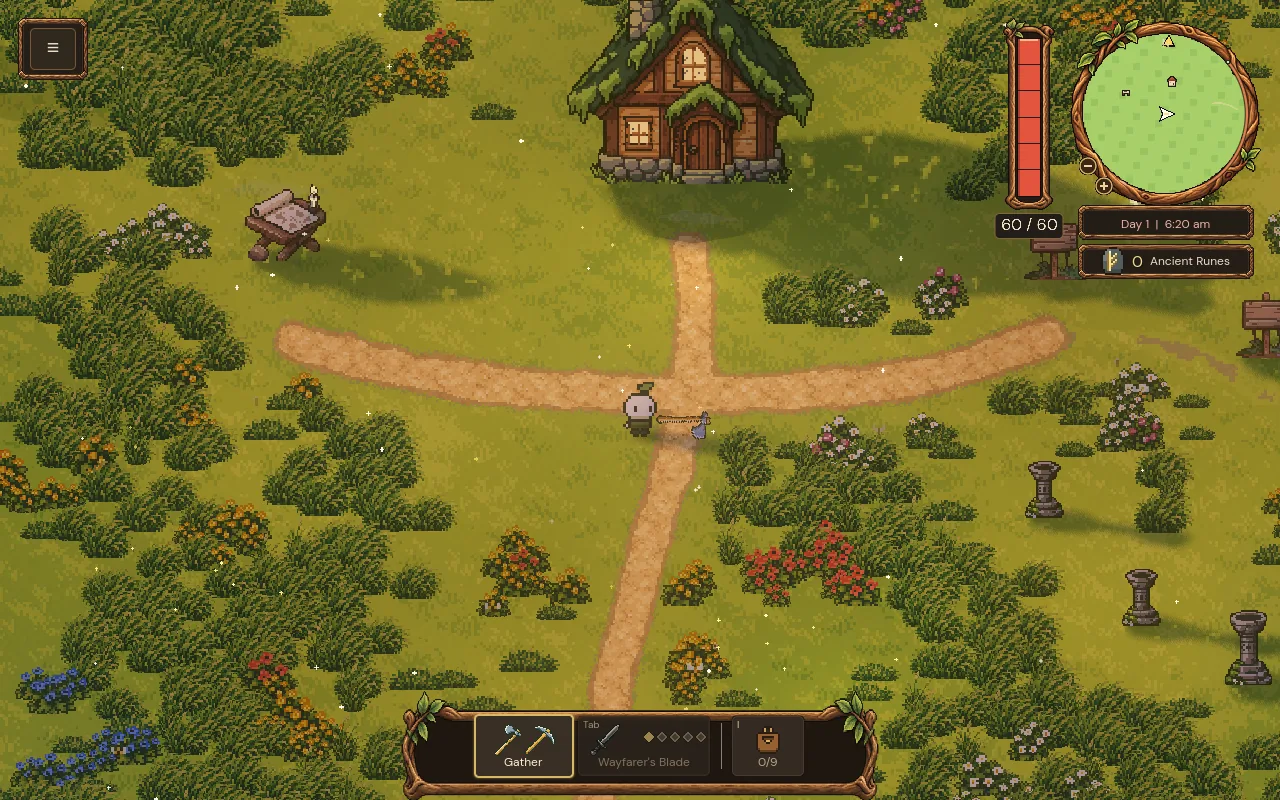
Step between the default screen and the quieter one
The default: the current objective at the top left, and the controls along the bottom for the first minutes of play.
Calm the motion
Motion is where games most often make people feel unwell. Reduced motion turns down the movement that's there for effect: the hitstop freeze and the strong flashes of combat feel, the camera's jolt on a hit, the rising of damage numbers, the afterimages behind a dash, and the sway of trees and drifting leaves in the forest. Every piece of information stays: a hit still flashes, a number still appears, and the game plays the same.
Screen shake has a switch of its own, because some players like everything else moving and only mind the camera. Its strength and timing are in screen shake in games. Under Display, Camera zoom runs from 75 % to 150 % and Camera smoothing can be Off, Gentle or Smooth; why our top-down camera never runs ahead of the player is its own post.
Never rely on colour alone
Mytheria warns you before every attack with a shape on the ground in one of a few colours: red to dodge, blue to counter. Some players can't tell those apart easily. Warning shapes adds a shape to each kind: diagonal hatching on danger areas, rings on attacks you can counter, and a sparkle on an exposed weak point. The same option turns hunting creatures on the minimap into small triangles and adds a "!" to the arrows at the screen's edge that point to threats you can't see. How the warnings themselves work is in telegraphing attacks.
Write important sounds on screen
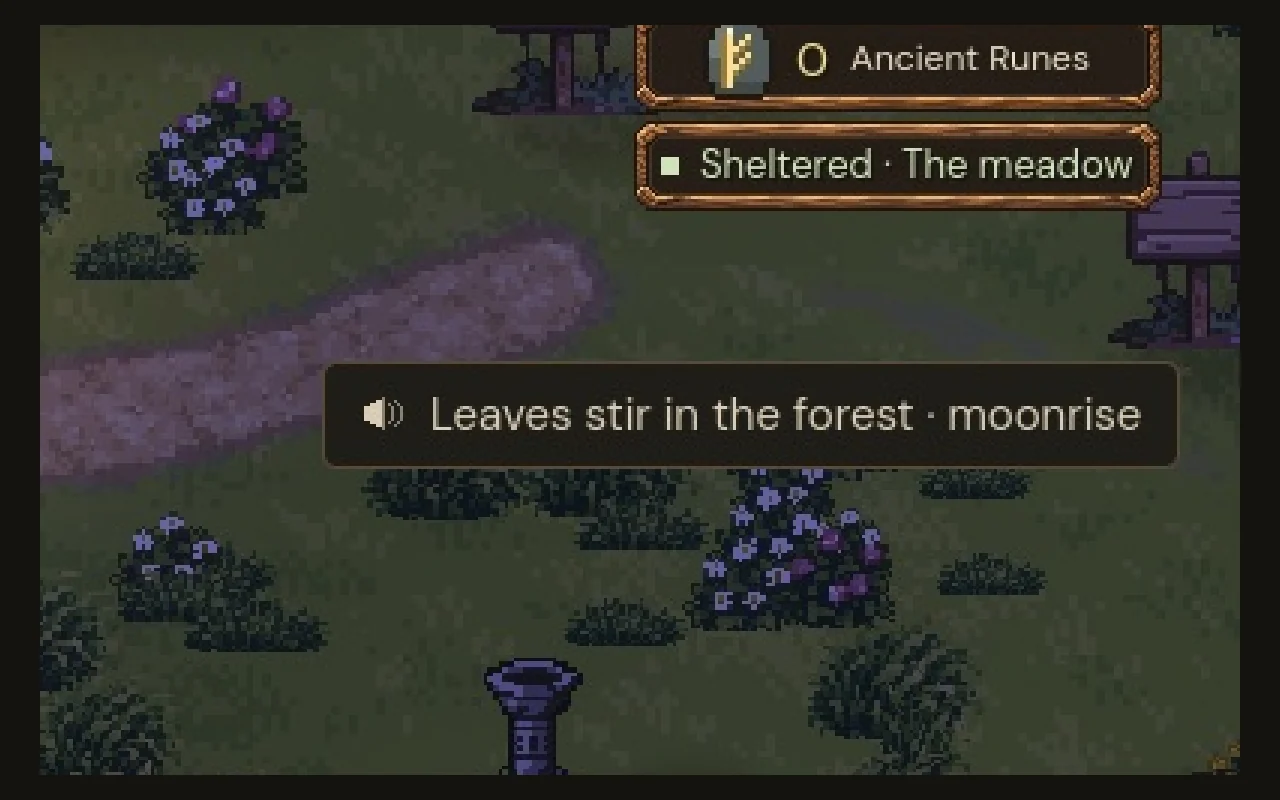
A lot of Mytheria's world speaks through sound, like the horn before the night fog or the quake when a boss wakes. With Sound captions on, each of those is written at the right edge of the screen, in the middle, where it doesn't cover the fight. Every caption starts with a small speaker icon and names the sound and what it means. It stays for three seconds:
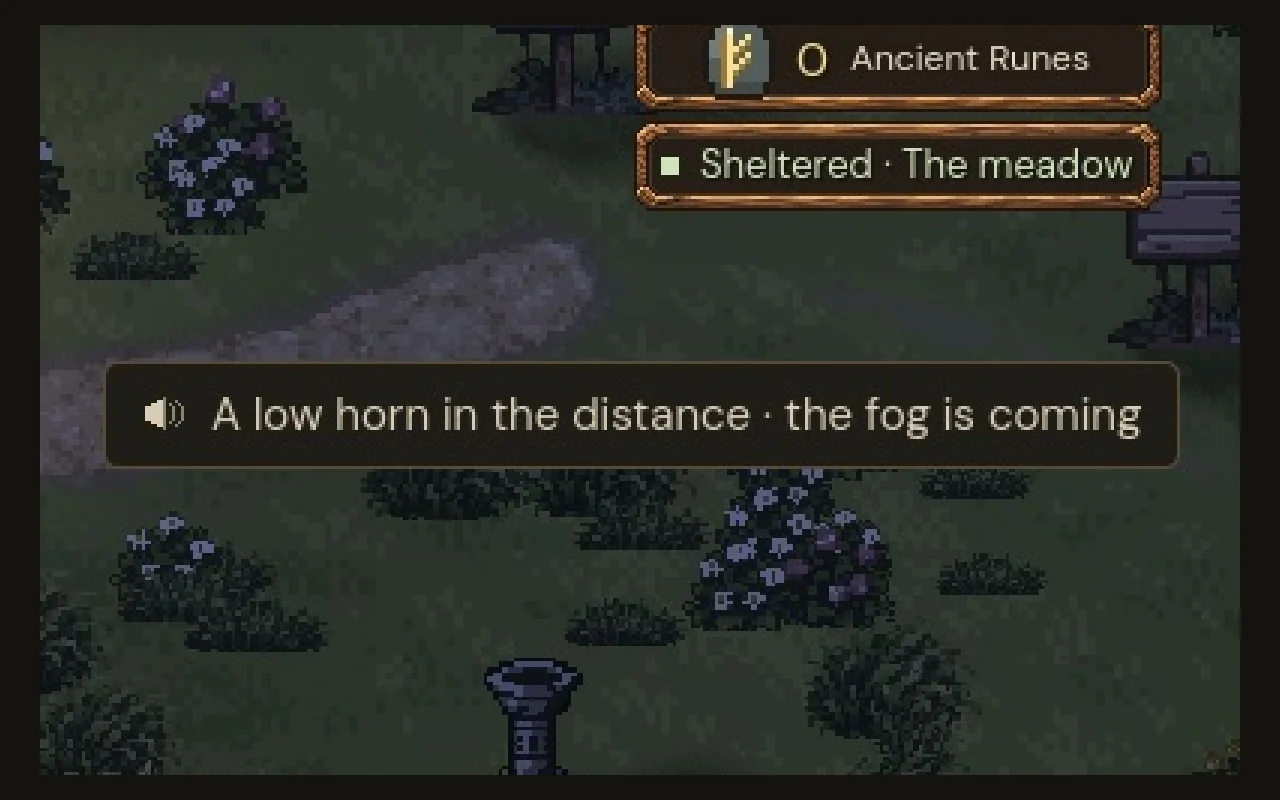
Step through two captions from one night
At 22:00 the moon rises and every creature on the surface grows stronger. The sound is a rustle in the trees; the caption says what it means.
Eight sounds get a caption: the moonrise, the fog's warning horn, the fog rolling in, the fog lifting, the dawn chime, the world falling asleep, a hidden ladder appearing, and a boss waking. We caption the sounds that tell you something you'd otherwise miss, and leave out the hundreds of footsteps and swings, because a caption for every sound would bury the ones that matter. The night they belong to is in night and fog.
Make big decisions hard to trigger by accident
Some actions in Mytheria spend a lot: forging a weapon, building a station, charting a new region, or a wish that uses runes the whole world shares. A stray press shouldn't do any of that, so those buttons need a hold. Holding is hard for some hands, though, so Confirm big spends offers a second way: press once to arm the button, then press again within three seconds. Try both, with the game's own timing:
Forged 0 times · cancelled 0 times
Press and hold the button, or let go early. Then switch to Press twice
Only spends you can't take back are held. Storing or taking one item is a single press, and Offer all at the shrine only asks for a hold when it would give away something a recipe you've pinned still needs. Quitting without saving uses the same hold; why is in saves that survive a crash. The button itself is free to use in your own Godot game: Hold To Confirm, MIT licensed.
Let players change every control
Every action can be moved to another key or another controller button. When you pick a key that's already used, the two swap, and the menu says so, so no action is ever left without a key. Toggle gathering turns the gather button from hold into press-once-to-start, which matters in a game where you gather for minutes at a time. The controller deadzone, how far a stick has to move before it counts, runs from 0.1 to 0.5, so a worn stick that drifts can be calmed down.
Two more help with seeing and hearing. Brightness, under Display, shows a black plate with a faint diamond on it; you raise the slider until the diamond is barely visible, which sets the world's brightness for your screen without touching the menus. Under Audio, the world sounds, the interface and the music each have their own volume, so a player who needs to hear the warnings can turn the music down without losing them.
How we built the settings in Godot
All settings live in one dictionary per device, with one table of defaults, and every screen reads from it. Each option in the menu is built by one small helper for its kind of control, from its label, its settings key and its line of help, so adding an option is one line in the menu plus the code that uses it. Changing a setting sends the whole dictionary to the game at once, and each part of the interface applies what it needs, which is why changes show up immediately.
Caption text, warning shapes and the hold button are ordinary interface nodes that check their setting when they appear, so turning an option on in the middle of a fight works on the next warning or the next caption. None of it changes the game's rules, so a player with every option on plays the same game as everyone else.
A checklist for accessibility settings
- Let players make all text bigger, and let layouts rearrange to fit.
- Offer high contrast for text over the world.
- Let players switch off hints and titles once they know the game.
- Offer reduced motion, and give screen shake its own switch.
- Never use colour as the only signal.
- Caption the sounds that carry information.
- Protect big decisions with a hold, and offer a press-twice alternative.
- Let every control be changed, and let held actions become toggles.
- Keep settings per device, apply them at once, and keep the game's rules the same.
Further reading
- Game UI readability: text sizes that work on every screenHow big should game UI text be? Valve's Steam Deck minimum, Mytheria's measured font sizes on every screen, and an interface size setting that reflows.
- Telegraphing attacks: how to warn players before a hitA telegraphed attack warns you where and when it will land. How Mytheria telegraphs every attack: a shape on the ground, a clock, more time for big hits.
- MytheriaPlay it your way: a pixel-art co-op adventure for one to four players, coming to Steam.
Wishlist Mytheria
Mytheria is a pixel-art co-op adventure for one to four players, coming to Steam for Windows, macOS and Steam Deck. A wishlist is the best way to follow it and to help us.