How to make saves that survive a crash
How Mytheria's Godot save system survives crashes: write to a temp file then swap, rotating backups, autosave off the main thread, no silent quits.
On this page
Losing a world you've played for hours is the worst thing a game can do to a player, and it usually happens in an ordinary way: the power goes out, the game crashes, or the disk is full at the exact moment the game was writing its save. In Mytheria, our pixel-art co-op game built in Godot, the save system is designed around one rule: the old save is never touched until the new one is safely on disk.
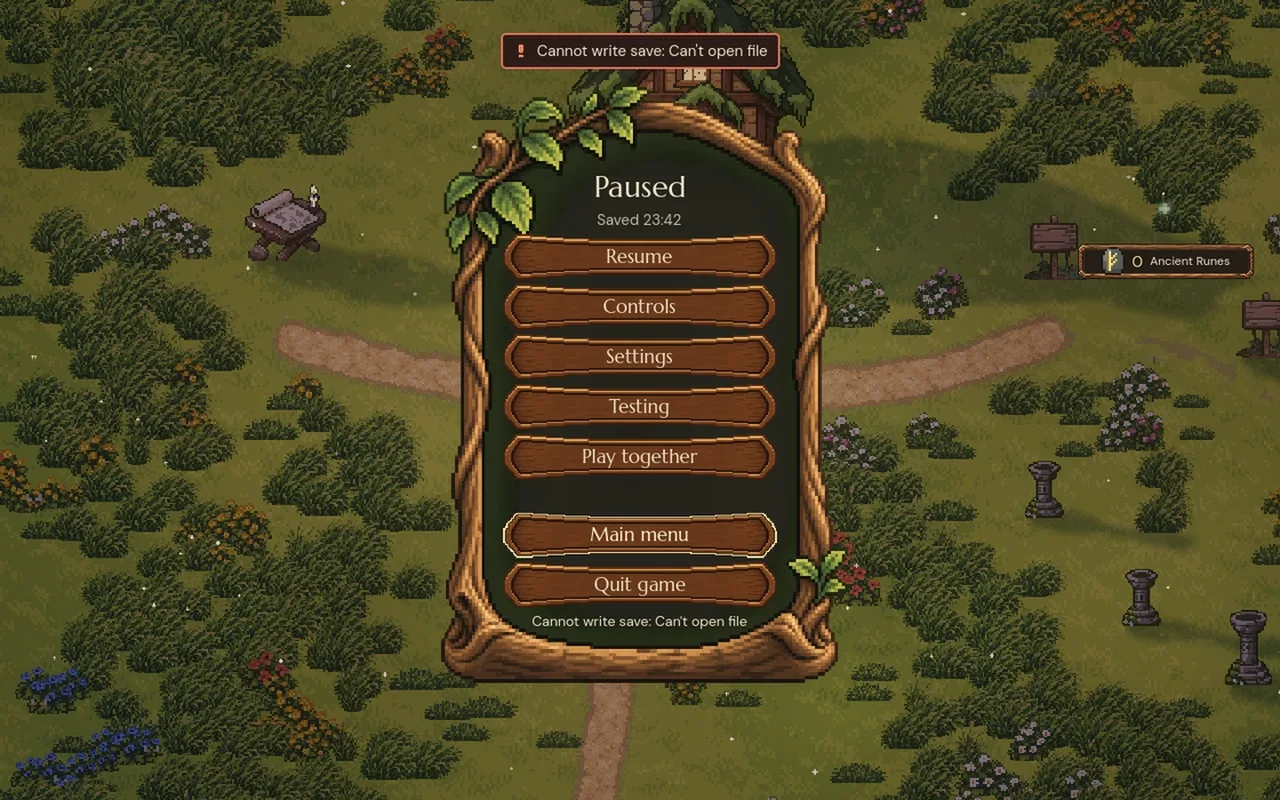
The clip at the top was filmed for this post. We made the save folder read-only from outside the game, then asked the game to go to the main menu.
How do you stop save files getting corrupted?
Never write over the only good copy. Write the new save to a separate file first, and only when it's complete, swap it into place with a rename, which the file system does in one step. Keep a few older saves as backups, check every save when you load it, and if a save fails, tell the player plainly.
The short answer
How Mytheria keeps saves safe:
- The new save goes to a
.tmpfile first, then a rename replaces the old one. - There are three rotating backups, made only when the world has actually changed.
- The game autosaves every 5 seconds of play, writing a copy of the world in the background.
- Before quitting or switching worlds, it waits for the background save, so no file is ever cut off halfway.
- Every save is checked on load, and old or broken ones are refused with a clear message while the file stays untouched.
- When a save fails, the game never quits or leaves the world without telling you.
- You can restore backups from the world's own screen.
Write, then swap
The simple way to save is to open the file and write the new world into it. If anything goes wrong halfway, the file is half old and half new, and neither version can be loaded. Mytheria writes the whole new world to world.json.tmp next to the real save, checks the write succeeded, and only then renames it over the old file. A crash while writing leaves the old save untouched and a stray .tmp file that's never loaded and gets overwritten next time.
Try both ways. Save a few times, then cut the power partway through one:
Save a few times, then cut the power in the middle of one
Cut the power during the last steps of a swap and you'll see the one awkward moment in this design: for an instant there's no file under the save's own name, only the finished .tmp and the backups. Nothing is lost, but the world list doesn't show that world until a file is restored. A swap that renames the new file directly over the old one closes that gap, keeping a copy of the old save as a backup first.
Keep backups, but only of real changes
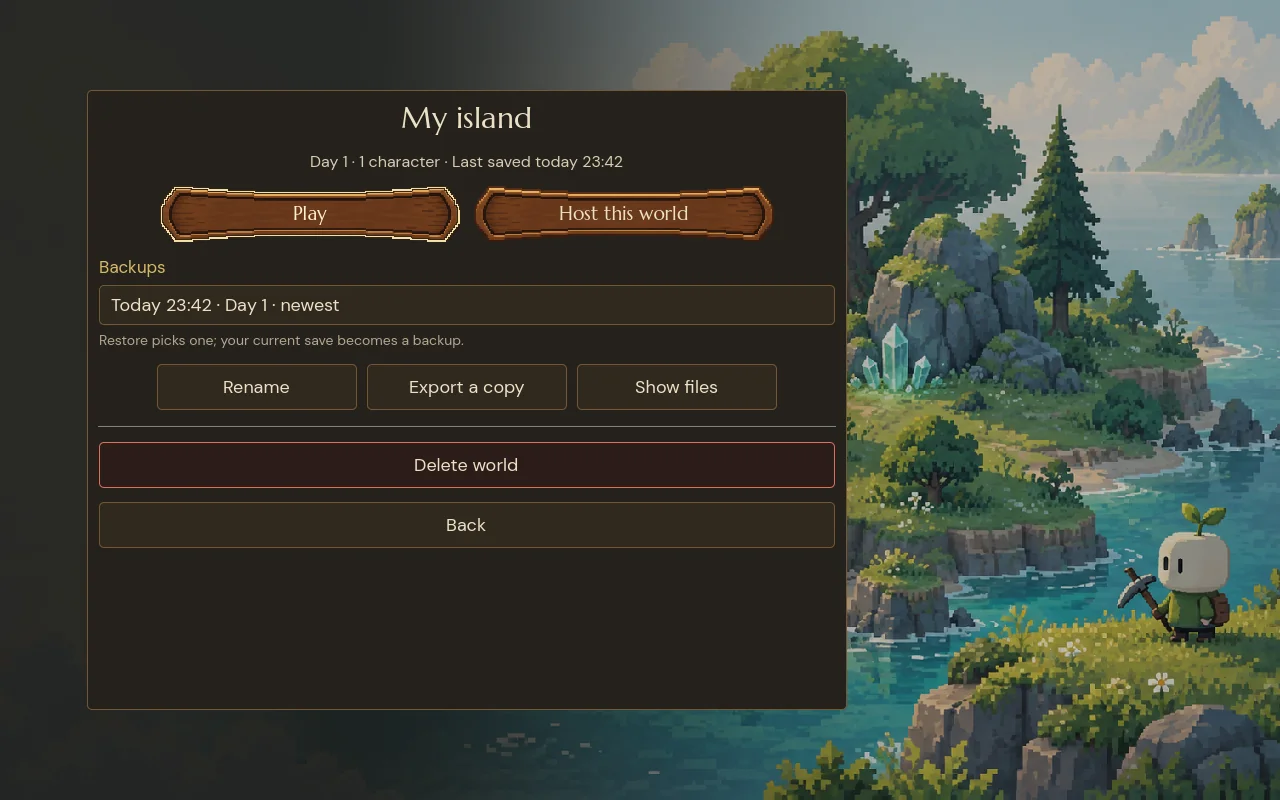
Before each swap, the current save becomes the newest backup, and older ones shift along: .backup.1 is the newest, .backup.3 the oldest, and a fourth copy, .backup, always mirrors the newest. Three backups cover the common accident, a save that's fine but not what you wanted, without filling the disk.
Autosave runs every few seconds, so simple backups would all be identical copies of the same moment. Mytheria keeps a fingerprint of the last world it wrote, and if nothing has changed, it writes without touching the backups, so the backups stay spread across real moments of play.
Each world's screen lists its backups by time and day. Restoring one swaps it in, and the save it replaces becomes a backup itself, so even a restore can be undone:
Autosave without hitches
Saving a whole world takes time, and doing it on the game's main thread would cause a stutter every few seconds. Mytheria autosaves every 5 seconds of unpaused play, but the main thread only takes a copy of the world; a background worker turns that copy into text and writes it. At most one save is being written and one is waiting. If the game hands over a newer world while one is waiting, the newer one replaces it, so a slow disk never builds up a queue of old saves.
Saving by hand, quitting and switching worlds don't use the background worker. They first wait for any autosave still being written, then save directly, so a file is never cut off halfway, even when you quit without saving.
In co-op only the host saves: the host's game owns the world and guests keep a copy. How that works is in how co-op multiplayer works in Godot.
Check every save on load
A save can still be damaged by something outside the game. So every load checks the file: it must be under 2 MiB, it must be valid JSON, and the world inside must pass a full schema check. A world from an older save format isn't silently upgraded or deleted; the world list says it can't be opened, explains why, and says the file hasn't been changed.
Never lose play silently
When a save fails, a message that fades while the game carries on is the worst response. In Mytheria, a failed save stops whatever needed it. Choosing Main menu, as in the clip, shows the error and keeps the world open. Quitting the game with a failed save opens a dialog: "Couldn't save" the world, why, and that play since the last good save will be lost if you quit now. "Keep playing" is focused, and "Quit without saving" has to be held down, or pressed twice if the player prefers, so it never happens by accident. The menus themselves are covered in pause menu design.
A checklist for save files that survive a crash
- Write to a temporary file, then rename it into place.
- Keep a few rotating backups, and skip them when nothing changed.
- Autosave on a copy, off the main thread, keeping only the newest pending save.
- Wait for a background save before quitting.
- Validate every save on load, and never delete what you can't read.
- Let players restore backups themselves.
- When a save fails, stop and tell the player.
Further reading
- How co-op multiplayer works in Godot: host, prediction and lagHow Mytheria's online co-op works in Godot: one host owns the world, guests send inputs and predict their own moves. Try the lag demo, see real numbers.
- Pause menu design: six ways to build one, comparedSix ways to build a game pause menu, from a plain panel to a painted scene, what each costs, and why Mytheria uses one painted wooden plate over the world.
- MytheriaBuild a world worth saving: a pixel-art co-op adventure for one to four players.
Wishlist Mytheria
Mytheria is a pixel-art co-op adventure for one to four players, coming to Steam for Windows, macOS and Steam Deck. A wishlist is the best way to follow it and to help us.